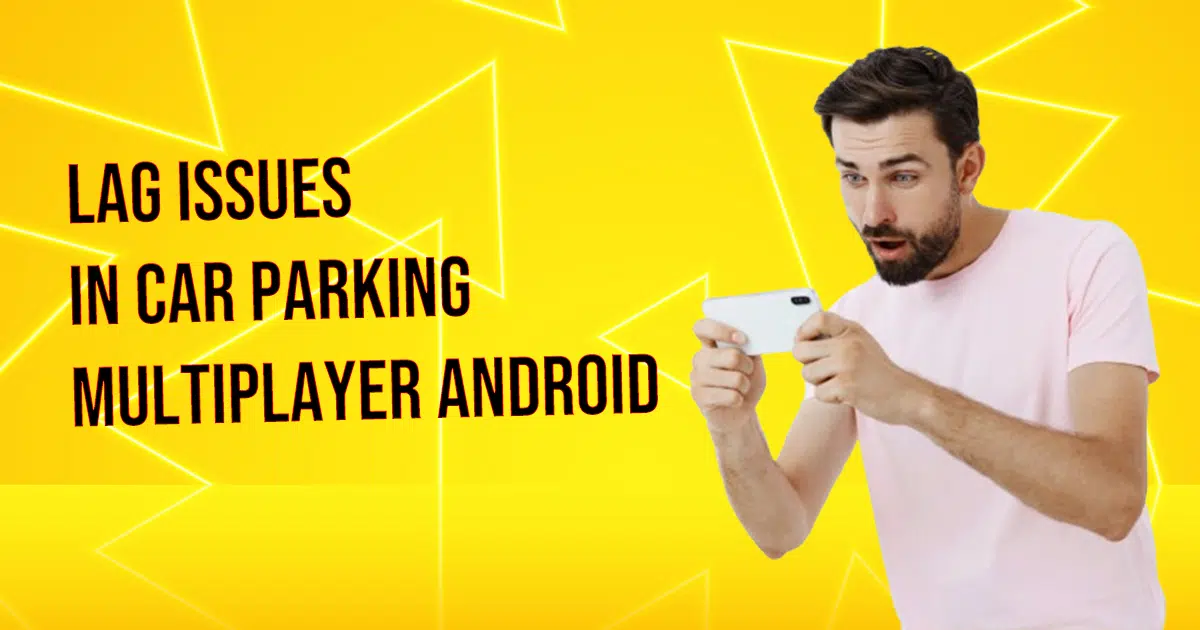
Car Parking Multiplayer (CPM) is one of the most popular driving simulator games, offering modded features, multiple game modes, detailed graphics, and customized vehicles. Despite its advanced features, many players experience lag, which can disrupt gameplay and cause frustration.
Lag issues occur as a delay between player actions and server response, and are mainly of two types:
- Latency Lag: Caused by network traffic or a poor internet connection.
- Graphics Lag: Caused by insufficient processing power or low device performance.
This guide explains the causes of lag and the proven ways to fix it for a smoother CPM experience on Android devices.
You may Like Reading: Car Parking Multiplayer PC Download
Causes of Lag in Car Parking Multiplayer
1. Software Bugs
Sometimes, lag occurs due to software bugs after an update. Even minor bugs can affect multiplayer functionality and disrupt gameplay.
2. Misconfigured Game Settings
Incorrect graphics or gameplay settings can cause lag, especially for beginners who are unfamiliar with optimal settings for their device.
3. Poor Internet Connection
Unstable or slow internet leads to ping issues, causing delays in server communication and resulting in lag.
4. Low Device Performance
Devices with lower processing power or limited RAM may struggle to handle CPM’s high-quality graphics and multiplayer features.
5. Lag in Private Rooms
Adding too many players to a private room can overload the server for your session. Only invite players who are familiar with your room code to reduce lag.
Fix Lag Issues in Car Parking Multiplayer
How to Fix Lag Issues in Car Parking Multiplayer
Here are actionable solutions to fix both latency and graphics lag in CPM:
1. Update the Game and Device Software
Always install the latest game update and ensure your Android OS is up to date. Developers frequently release patches to fix bugs causing lag.
2. Free Up Storage
Lag can occur when your device’s storage is almost full.
- Uninstall unused apps or files.
- Clear CPM cache: Go to Settings → Apps → Car Parking Multiplayer → Storage → Clear Cache.
3. Move Files to Cloud Storage
Transfer large files (videos, photos, documents) to Google Drive, iCloud, or Dropbox to free device storage and improve performance.
4. Adjust Device and Graphics Settings
Optimize CPM performance based on your device specs:
- Open the game and go to Settings → Graphics.
- Adjust resolution, shadows, and texture quality to match your device’s capabilities.
5. Download CPM 60 FPS Version
The CPM 60 FPS Mod APK allows smoother gameplay with brighter visuals. Set FPS to 60 for optimal performance. Higher FPS options (120 FPS) require high-end devices and monitors.
6. Use a Game Booster
Game boosters enhance performance by:
- Closing background apps
- Freeing RAM
- Reducing loading time: 4X Game Booster from the Google Play Store.
7. Contact Support
If lag persists despite trying the above solutions:
- Contact the official CPM support team
- Seek help from gaming communities like Reddit, Quora, or Facebook groups.
Conclusion
Fixing lag in Car Parking Multiplayer requires addressing internal and external factors such as software bugs, device storage, graphics settings, internet speed, and room management. By following the steps above, players can enjoy a smooth and optimized CPM gaming experience.
FAQs – Fix Lag Issues in Car Parking Multiplayer
Q1: Why does my CPM game lag even with a fast internet connection?
A: Lag may be caused by low device performance, graphics settings, or private room overload. Optimize your device and adjust game settings for smoother gameplay.
Q2: Can clearing the cache really reduce lag in CPM?
A: Yes, clearing the cache removes temporary files and frees up RAM, which improves game performance significantly.
Q3: Which FPS setting is best for Car Parking Multiplayer?
A: The 60 FPS option is ideal for most devices. Higher FPS may only be suitable for high-end devices.
Q4: Will a game booster help fix latency lag?
A: Yes, game boosters can close background apps, free RAM, and stabilize FPS, reducing both latency and graphics lag.
Q5: My lag persists after all fixes. What should I do?
A: Contact CPM support or ask for help in gaming communities. Sometimes, lag is due to server-side issues beyond your control.